6 best InDesign alternatives and complementary tools for 2026


InDesign is one of the most capable design tools on the market. It does its best work in print and publishing, including magazines, catalogs, brochures, annual reports, and multi-page documents. And for professional designers, it remains one of their top choices.
So why look beyond InDesign? There are potentially two reasons.
Some designers are simply looking for a different design tool, whether for vector work, web and interface design, real-time collaboration, or something else entirely. Others aren’t designers at all. These are your sales reps, regional teams, and franchise partners who need to produce branded content but either don’t know how to use InDesign, don’t have the time to learn it, or simply don’t want to pay for an Adobe license.
This guide covers both the true InDesign alternatives that designers can switch to and the complementary tools that everyone else can use to create on-brand content alongside the design team.
How we selected these tools
We split this guide into two groups: direct InDesign alternatives and complementary tools. Each group serves a different need, so we evaluated them against different criteria.
For the alternatives (the design tools a designer might switch to), we looked at:
- Design capabilities: Does it handle the kind of professional design work InDesign is known for (vector graphics, layout, page design, interface work)?
- Learning curve: How easily can a designer already familiar with InDesign pick it up?
- File compatibility: Can the tool import and export the formats teams already work with, like PDF, PSD, AI, IDML, and SVG? Does it preserve layers, fonts, and structure when files move in and out? And does it integrate with other platforms?
For the complementary tools (the platforms that let non-designers create content alongside the design team), we looked at:
- Ease of use for non-designers: Can someone outside the design team create on-brand content without training?
- Brand control: Does the tool come with features that help non-designers stay on-brand, like preset templates, locked elements, or brand kits? The people using these tools aren’t designers, so the guardrails need to be built in rather than left to the user’s judgment.
- Scalability and integrations: Can it support distributed teams as they grow, and does it integrate with tools they already rely on, like customer relationship management (CRM) systems, digital asset management (DAM) platforms, and cloud storage? The more it plugs into an existing stack, the less manual work falls on the team.
Below, we break each tool down so you can see which group it falls into and which problem it solves best.

See how Marq extends InDesign for enterprise teams
Give non-designers a structured way to create branded content while designers keep working in InDesign.
6 best InDesign alternatives and complementary tools: At a glance
| Tool | Key features | Best for |
| Best InDesign alternatives | ||
| Adobe Illustrator | Precision vector tools, generative AI (Concept to Vector, Text to Vector), type and artboard tools | Designers creating vector artwork like logos, icons, and illustrations |
| Figma | Real-time collaboration, design systems with components and variables, Figma Draw vector tools, Dev Mode | Product, web, and brand teams designing digital-first content |
| Sketch | Precise vector editing, Symbols and shared Libraries, built-in prototyping, free developer handoff | Mac-based UI and UX designers building digital products |
| Best InDesign complementary tools | ||
| Marq | InDesign .idml import, brand-locked templates with smart fields, self-service portals, CRM and DAM integrations | Distributed teams scaling on-brand content beyond designers |
| Canva | Drag-and-drop editor, massive template library, real-time collaboration, multi-format content | Individuals and solopreneurs creating quick, everyday content |
| Adobe Express | Creative Cloud integration, Adobe Firefly AI, 200M+ asset library, full-featured mobile app | Non-designers already working in the Adobe ecosystem |
Best InDesign alternatives
These are the design tools a professional might use instead of InDesign. Each one is built for design work, but each comes at it from a different angle.
1. Adobe Illustrator: Best for vector-first design work
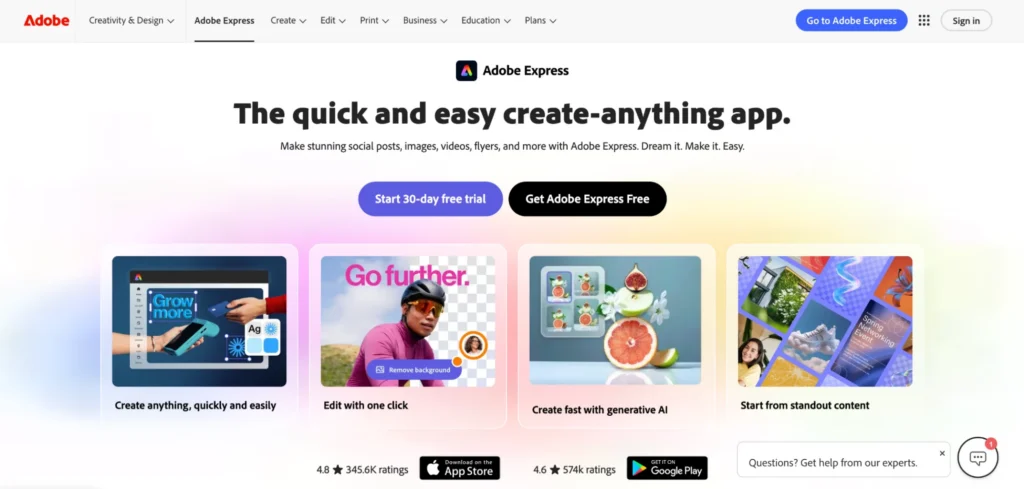
Adobe Illustrator is a vector graphics application and one of the most established design tools in the Adobe Creative Cloud suite. Designers use it to create logos, icons, illustrations, and artwork that scale to any size without losing quality.
Key features
- Precision vector tools: Illustrator’s Pen, Curvature, and Shape Builder tools let designers draw and combine precise lines and shapes.
- Generative AI tools: Illustrator offers a suite of AI-powered features that speed up the early stages of design. Concept to Vector turns sketches or low-res images into editable vectors, Text to Vector Graphic generates artwork from a prompt, and Generative Shape Fill and Generative Recolor help designers explore new directions without manual redraws.
- Type and artboard tools: The Type tool, Type on a Path, and multi-artboard support handle single-page designs like posters, logos, and banners well, with detailed control over lettering and layout.
Where Illustrator shines
- Logos, icons, and illustrations: Adobe Illustrator handles vector artwork better than almost anything else. Designers build logos, icons, and illustrations once, then scale them cleanly across business cards, billboards, packaging, and digital formats without losing sharpness.
- Single-page, graphics-heavy design: Posters, flyers, and one-page layouts built around custom illustration are often easier to produce in Illustrator than InDesign.
- Seamless Adobe ecosystem integration: As part of Adobe Creative Cloud, Illustrator connects directly with Photoshop, InDesign, and the rest of the Adobe suite. Designers move assets between tools without conversion, and vector graphics built in Illustrator drop straight into InDesign layouts.
Where Illustrator falls short
- Not built for multi-page documents: Illustrator has no master pages, no automatic page numbering, and no linked text flow across pages.
- Limited value outside the Adobe ecosystem: Illustrator truly delivers when it’s paired with the rest of Creative Cloud. If your team works with a mixed tool stack or isn’t otherwise invested in Adobe, you lose much of the integration advantage, and you’re still locked into a subscription and Adobe’s proprietary file formats.
Customer reviews
“I love the precision and versatility of the Pen tool and the seamless integration with other Adobe Creative Cloud apps like Photoshop and InDesign. The vector scaling is flawless, so I can design everything from small icons to large billboards without losing quality,” says Marco G.
“The subscription model is a constant friction point, the cost adds up, especially for freelancers or small studios. The learning curve is steep for newcomers, and the interface can feel cluttered if you’re not a daily user. Performance occasionally lags with very complex files containing hundreds of layers,” shares Rajgauri V.
Who Illustrator is best for
- Designers who create vector artwork like logos, icons, and illustrations, especially those already working inside the Adobe Creative Cloud ecosystem.
2. Figma: Best for collaborative, digital-first design
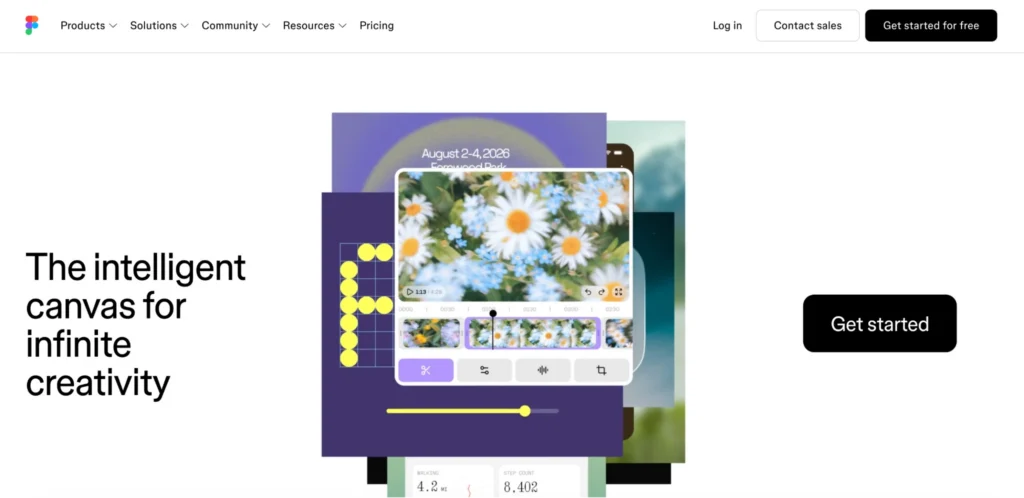
Figma is a browser-based design platform built primarily for web and interface design. Over the past few years, designers have started using it for a wider range of work, including illustration, presentations, and marketing materials. Its real-time collaboration and design system tools have made it a widely adopted design platform.
Key features
- Real-time collaboration: Multiple designers and stakeholders work in the same file at once, leave comments, and watch edits happen live. This is unlike InDesign, where one person works in a file at a time and shares it back and forth.
- Design systems with components and variables: Teams build reusable components, styles, and variables that update everywhere at once.
- Vector and illustration tools: Figma Draw brings vector brushes, dynamic and variable-width strokes, texture effects, text on a path, and image vectorization onto the canvas, so designers can illustrate without switching to a separate tool.
Where Figma shines
- Digital and interface design: For websites, apps, prototypes, and on-screen content, Figma is one of the strongest tools available. Auto layout, prototyping, and Dev Mode are built specifically for designing and shipping digital products.
- Design-to-development handoff: Figma closes the gap between design and engineering. Developers inspect designs in Dev Mode, pull production-ready code, and connect to their codebase through the Figma MCP server, so what gets designed is what gets shipped.
Where Figma falls short
- Not a native print tool: Figma isn’t built for print. Native PDF export tops out at 72 DPI in RGB, so print-ready output with bleed, crop marks, and CMYK conversion depends on third-party plugins. For serious print and publishing work, InDesign remains the better fit.
- Not built for long-form documents: Figma has no master pages, automatic page numbering, or linked text flow across pages. It handles short multi-frame documents, but books, magazines, and catalogs aren’t where it’s strong.
Customer reviews
“UI/UX is clean, modern, and optimized for design workflows with features like auto layout and components. Real-time collaboration makes team interaction seamless,” shares Balamurugan P.
“For larger files, it sometime lag and sometimes, the browser is not able to parse the file and make it very hard to access, unless trying multiple tabs, or different browser windows. Sometimes, it starts lagging while working on any file,” says Senil S.
Who Figma is best for
- Product, web, and brand teams that design digital-first content and value real-time collaboration over print-publishing depth.
3. Sketch: Best for Mac-based interface design

Sketch is a vector design tool built exclusively for Mac. Since launching in 2010, it has earned a loyal following among UI and UX designers who want a fast, focused, native Mac experience. It centers on interface work like app screens, web layouts, and design systems, with everything running on an infinite, distraction-free canvas.
Key features
- Precise vector editing: Sketch’s vector editor handles everything from glyphs and icons to full app interfaces, with non-destructive Boolean operations, multi-point editing, the Pen tool, and pixel snapping for sharp results at any size.
- Symbols, libraries, and design systems: Reusable Symbols, Color Variables, Text Styles, and shared Libraries let designers update an element once and have it change everywhere, which keeps large design systems consistent across documents and teams.
- Built-in prototyping: Designers link Frames into clickable prototypes, add transitions with Smart Animate, and test them in a browser, on an iPhone, or on an iPad, without paying for a separate prototyping tool.
Where Sketch shines
- Focused, distraction-free interface design: Sketch keeps its toolset tight and purpose-built for UI and UX work. As a native app optimized for Apple Silicon, it runs fast, works offline, and lets designers save files locally or sync through a cloud Workspace.
- Free developer handoff: Through the web app, developers inspect designs on the canvas, copy CSS and color values, measure between layers, and export design tokens in CSS or JSON, all in any browser, with no Mac or paid seat required.
Where Sketch falls short
- Mac-only for design: The full editor runs only on macOS. Teams on Windows or Linux can’t use it to create, which rules it out for many mixed-operating-system organizations.
- Built primarily for screens: Like Figma, Sketch is an interface design tool. It has no master pages, CMYK output, or print-publishing features, so it isn’t a fit for the multi-page print work InDesign handles.
Customer reviews
“Using Sketch feels like stepping into a clean, designer-friendly playground where everything just flows. It’s fast, lightweight, and works perfectly even offline — no slow-loading screens, no cloud drama, just pure design peace,” says Jinay S.
“It’s only available for macOS, which makes it harder to collaborate with teammates on Windows,” shares Michael A.
Who Sketch is best for
- Mac-based UI and UX designers building digital products and design systems who want a fast, focused, native design tool.
Best InDesign complementary tools
These are the tools that work alongside InDesign. They take the templates your designers build in InDesign and put them in the hands of everyone else.
4. Marq: Best for distributed teams scaling content beyond designers
Marq is a brand enablement platform that works alongside InDesign rather than replacing it. Designers keep working in InDesign, while the rest of the organization gets a safe, structured way to customize, personalize, and distribute that content at scale.
Your design team imports their files into Marq as locked templates, and from there non-designers across the business create their own on-brand versions without ever opening InDesign.
Key features
- InDesign coexistence with .idml import: Marq lets your designers package an InDesign file, import the .idml version, and convert it into an intelligent, locked template. The design stays intact, and anyone on the team can then produce their own version without opening InDesign or touching the original layout. Check out this video to see how the InDesign import works:
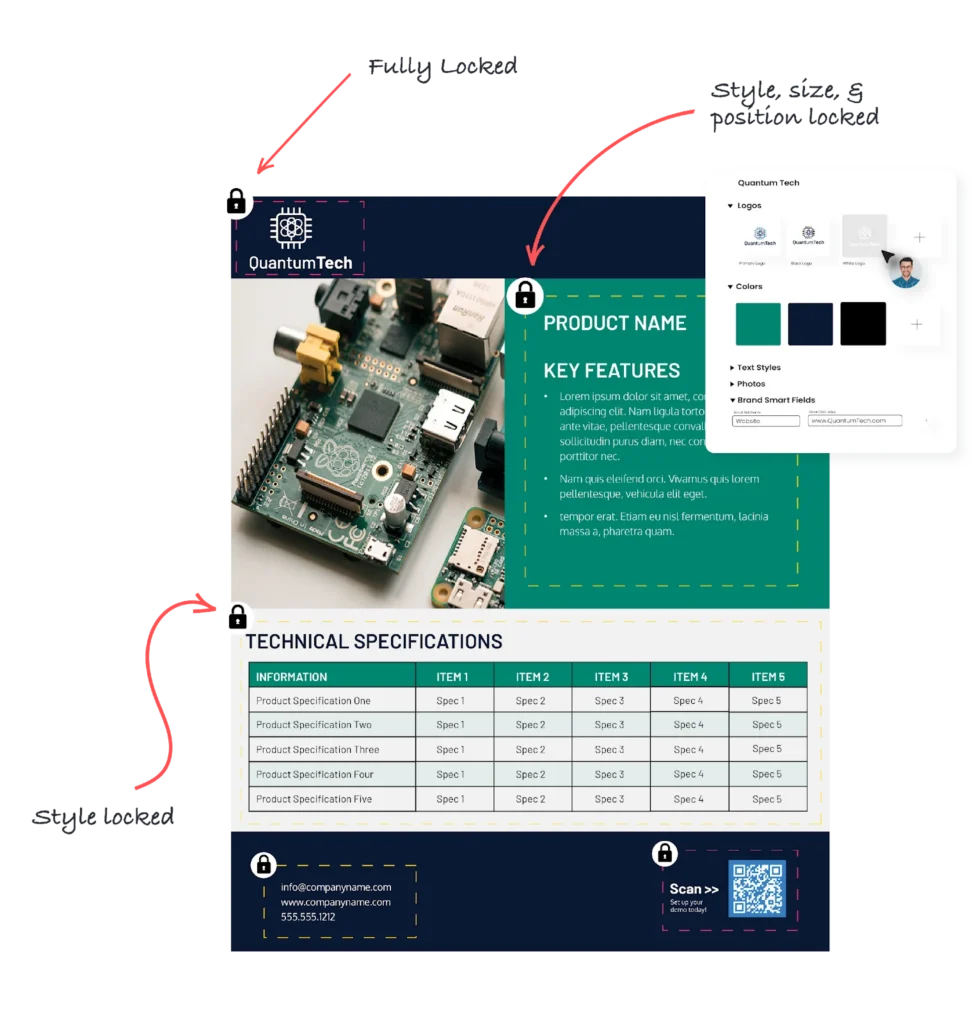
Brand-locked templates with smart fields: Brand teams lock the elements that should never change (logos, layouts, colors, legal copy) and assign editing permissions by role. Smart fields pull data from connected sources to auto-populate names, titles, locations, and pricing, so non-designers have the freedom to customize within guardrails and nothing off-brand reaches the market.
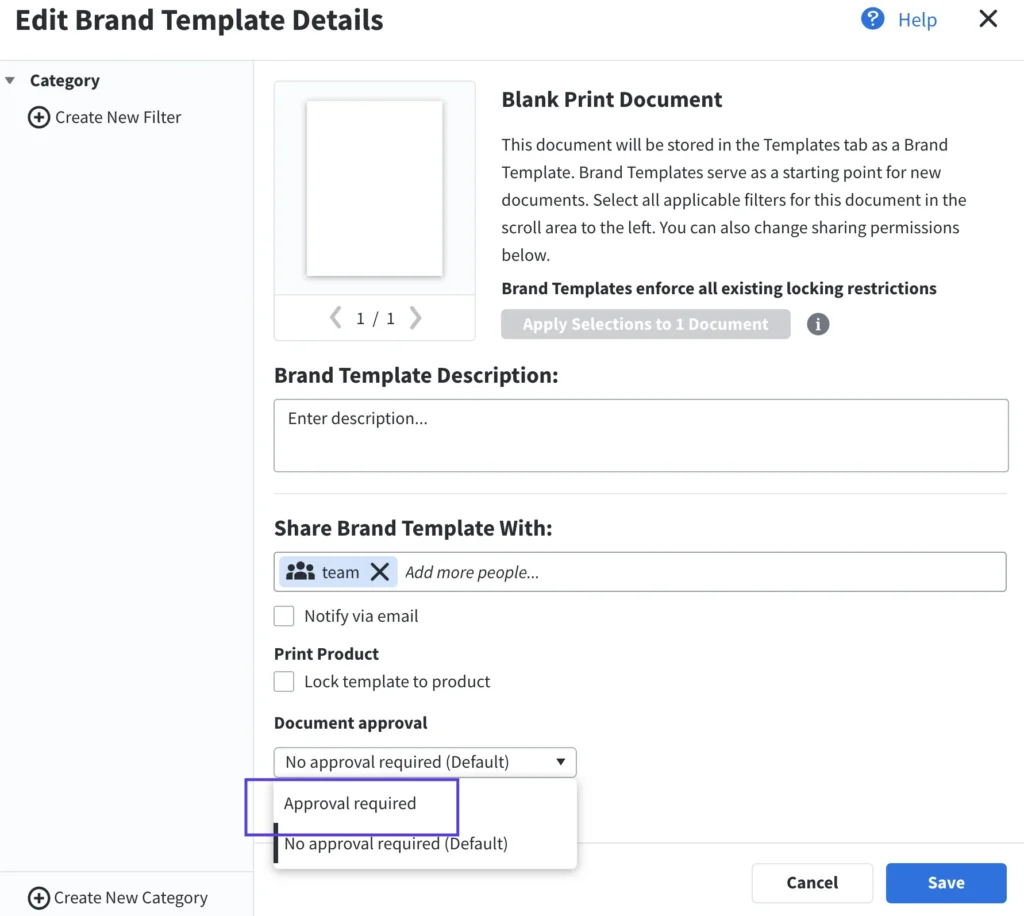
- Multi-step approval workflows: Content is routed to the right reviewers before it goes live. Brand and compliance teams set up approval workflows with the review steps they need, so nothing reaches the market without a sign-off from whoever needs to give it.
- Self-service portals for distributed teams: Brand teams create custom storefronts where reps, franchisees, and partners access only the templates and assets relevant to them. Each group gets its own curated workspace, and the brand team keeps visibility and control from the center.
- Native integrations across print, digital, and your tech stack: Marq integrates with tools enterprise teams already use. DAM integrations include Bynder, Brandfolder, MediaValet, Aprimo, and Canto, so approved assets show up inside the editor. Marq supports both digital and print output, and teams push finished content directly to print vendors, email, or social without leaving the platform.
Where Marq shines
- License consolidation: Adobe seats are expensive, and most of the people creating branded content don’t need one. Marq lets you keep InDesign for your designers while cutting Creative Cloud seats for everyone who only customizes templates.
- Professional services for large projects: Beyond standard onboarding, Marq has a dedicated professional services team that handles full-scale migrations, rebrands, and brand extensions. This is unlike other design tools that leave this work entirely to the customer.
- Brand control at scale: Object-level template locking, role-based permissions, and approval workflows keep content on-brand across hundreds or thousands of distributed users.
Where Marq falls short
- Instant import is .idml only: InDesign files import as self-serve in seconds. Other formats (Illustrator, PDF, PowerPoint, Canva, Figma) are supported, but they go through a setup process that takes one to three days rather than happening instantly.
- No export back to Adobe formats: Marq exports static PDFs and images, but it can’t round-trip a file back to native InDesign (.indd). Once a design moves into Marq, edits happen in Marq.
Customer reviews
“Some agents didn’t feel it was necessary to include the Reinhart logo on their content. But now that we can lock down our brand assets on the templates, agents and brokers can’t accidentally mess things up somehow,” shares Mary Cox, Reinhart Realtors.
“One of the things I love most about Marq is being able to upload inDesign files quickly on our own. Instead of waiting weeks to have templates created with other vendors, we can simply take an inDesign file, upload it into Marq, lock certain branding elements down, and have the template ready for agents and affiliates to use within a few minutes,” says Natalia Patla, Chief Marketing Officer at @properties
Who Marq is best for
- Marketing operators at distributed organizations (roughly 50 to 500 end users) who need to scale branded content across locations.
- Designers who want to stop being the customization bottleneck for every personalized flyer and one-pager.
- Companies consolidating Adobe Creative Cloud spend by removing seats for people who only customize or make minor edits to branded content.
- Franchise systems and multi-location retail that need consistent, localized content across every site.
- Healthcare, higher education, and financial services teams where compliance and brand standards are non-negotiable.
See how Marq works alongside InDesign. Schedule a demo.
5. Canva: Best for quick, accessible content creation

Canva is a browser-based design platform that makes it easy to create professional-looking content. It works well as a complement to InDesign for the everyday social posts, presentations, and quick marketing materials that don’t need to run through the design team.
Key features
- Drag-and-drop editor with a massive template library: Canva offers thousands of pre-built templates for social posts, presentations, flyers, and more, plus a library of creator-made designs that keep content current and on-trend.
- Built-in publishing and scheduling: Canva lets teams publish content directly to social channels and schedule posts from inside the platform.
- Real-time collaboration: Multiple team members edit the same design at once, leave comments, and share feedback directly in the editor, which cuts down on version confusion and email back-and-forth.
Where Canva shines
- Lowest barrier to entry: Canva is one of the easiest tools to pick up. A sales rep or HR coordinator can open it for the first time and produce a usable social graphic or flyer within minutes.
- All-in-one content range: Beyond static design, Canva handles presentations, short-form video, infographics, and social scheduling, so teams that want one tool for everyday content get a lot of range.
Where Canva falls short
- Limited data-driven personalization: Canva markets CRM integrations, but personalizing content at scale still leans on manual entry or basic rules-based logic. Teams that need to generate hundreds of tailored assets from a data source will find themselves editing variations one by one.
- Not ideal for distributed teams: Canva works well when a core team produces content together, but it doesn’t offer the role-based governance or self-service portal structure that distributed organizations need to let hundreds of non-designers create safely.
Customer reviews
“Canva doesn’t support exporting to professional formats like PSD, AI, or INDD, which means designs created in Canva cannot be easily transferred to Adobe software for further editing by professional designers,” says Luca P.
“We occasionally experience slight delays when multiple users edit the same design in real time especially with large files,” shares Mohamed M.
Who Canva is best for
- Individuals and solopreneurs who need everyday content like social graphics, presentations, and marketing materials.
6. Adobe Express: Best for non-designers in the Adobe ecosystem
Adobe Express is a lightweight design tool that works as a complement to InDesign for teams already invested in Adobe. It lets non-designers create social posts, flyers, and marketing graphics without opening a professional design app or learning the full Creative Cloud suite.
Key features
- Creative Cloud integration: Designers can bring content created in Photoshop, Illustrator, or InDesign into Adobe Express, and assets sync through Creative Cloud.
- AI-powered design with Adobe Firefly: Firefly is built into Express, so users generate images and text effects from a text prompt, with support for over 100 languages.
- Templates and a large asset library: Adobe Express offers templates across social, presentation, flyer, and print formats, plus access to Adobe Stock images, video, and fonts.
Adobe Express isn’t the only option for lightweight design; see how other Adobe Express alternatives compare.
Where Adobe Express shines
- Seamless Adobe ecosystem integration: For teams already on Creative Cloud, Express fits in as a natural extension.
- Full-featured mobile app: Adobe Express comes with a complete mobile app for iOS and Android, so teams can create and edit content on the go.
Where Adobe Express falls short
- Not built for distributed, data-driven content: Express doesn’t offer the self-service portals, role-based governance, or CRM-driven personalization that organizations need to put branded content in the hands of hundreds of non-designers at scale.
- Most valuable inside the Adobe ecosystem: It delivers the most when paired with Creative Cloud. Teams that use a mixed tool stack or aren’t otherwise invested in Adobe get less out of it, and as a standalone tool it doesn’t match platforms purpose-built for distributed content creation and governance.
- Device and licensing limitations: Adobe restricts the number of devices each license can be used on, so costs can escalate quickly, especially for distributed or growing teams.
Customer reviews
“It can be quite limiting for creating customized and sophisticated designs. Those users who have worked on other professional-grade software will notice that some editing and designing options are not as flexible as they would like,” shares Arkajit D.
“I find that Adobe Express sometimes lags on the desktop version when I use it on web, which can interrupt my workflow, especially when editing videos, as I need it to work seamlessly without getting stuck,” says Akhil M.
Who Adobe Express is best for
- Teams already embedded in Adobe Creative Cloud that need a lightweight way for non-designers to create quick graphics.
Choosing between an InDesign alternative and a complement
If your team already does its best work in InDesign, replacing it makes little sense. Moving a design team off a tool they know well takes time and rarely pays off unless the new tool is clearly better for the work.
The real question to ask at this stage is: who needs to create content? If you’re a designer with specific design demands, you’ll probably look for a true alternative built for vector, digital, or interface work. But if you need the rest of your organization to produce on-brand content, a complementary tool is the better fit.
This is where Marq comes in. Designers keep creating in InDesign, then hand those designs off as locked templates that the rest of the organization can personalize and publish on their own. Your brand stays consistent across every team and location, and your design team stops fielding requests for every small edit. If you have a distributed team and Adobe seats going to people who don’t need them, Marq is the complement worth looking at.
Want to see how Marq helps teams scale branded content? Schedule a demo.